Contact Us

If you still have questions or prefer to get help directly from an agent, please submit a request.
We’ll get back to you as soon as possible.

Please fill out the contact form below and we will reply as soon as possible.

  • Contact Us
  • Home

How to Convert Files to Articles via Drag & Drop

Easily transform your documents into Helpjuice articles

Written by Amanda Stançani

Updated at September 23rd, 2025

Contact Us

If you still have questions or prefer to get help directly from an agent, please submit a request.
We’ll get back to you as soon as possible.

Please fill out the contact form below and we will reply as soon as possible.

  • Customization
    Customization Guides
  • Article Editor
  • Getting Started
    Managing Users Analytics Content Management Permissions & Accessibility Video Tutorials
  • Integrations
  • API & Webhooks
    API V2 API V3
  • Languages & Translations
  • Authentication
  • Swifty AI
  • Settings
    User Settings User Behavior Knowledge Base Settings Custom Domain
+ More

Helpjuice allows you to convert your existing documents into articles by simply dragging and dropping them into the article editor. This feature supports PDF and DOCX formats, enabling you to quickly migrate content without the need for manual reformatting.

In this article, you’ll learn:

  • How to convert files into articles using drag and drop
  • Supported file formats for conversion
  • What happens if the article body is not empty
  • Best practices for using the drag-and-drop feature effectively

Converting Files into Articles

  1. Create a New Article
  • Click the + sign in the side panel or select New Article in the upper right corner of your Dashboard.
  1. Drag and Drop Your File
  • Open the folder containing your file.
  • Drag the file into the article's body area
  • Supported file formats include PDF and DOCX.
  1. Automatic Conversion
  • The content of the file will automatically convert into the article's body.
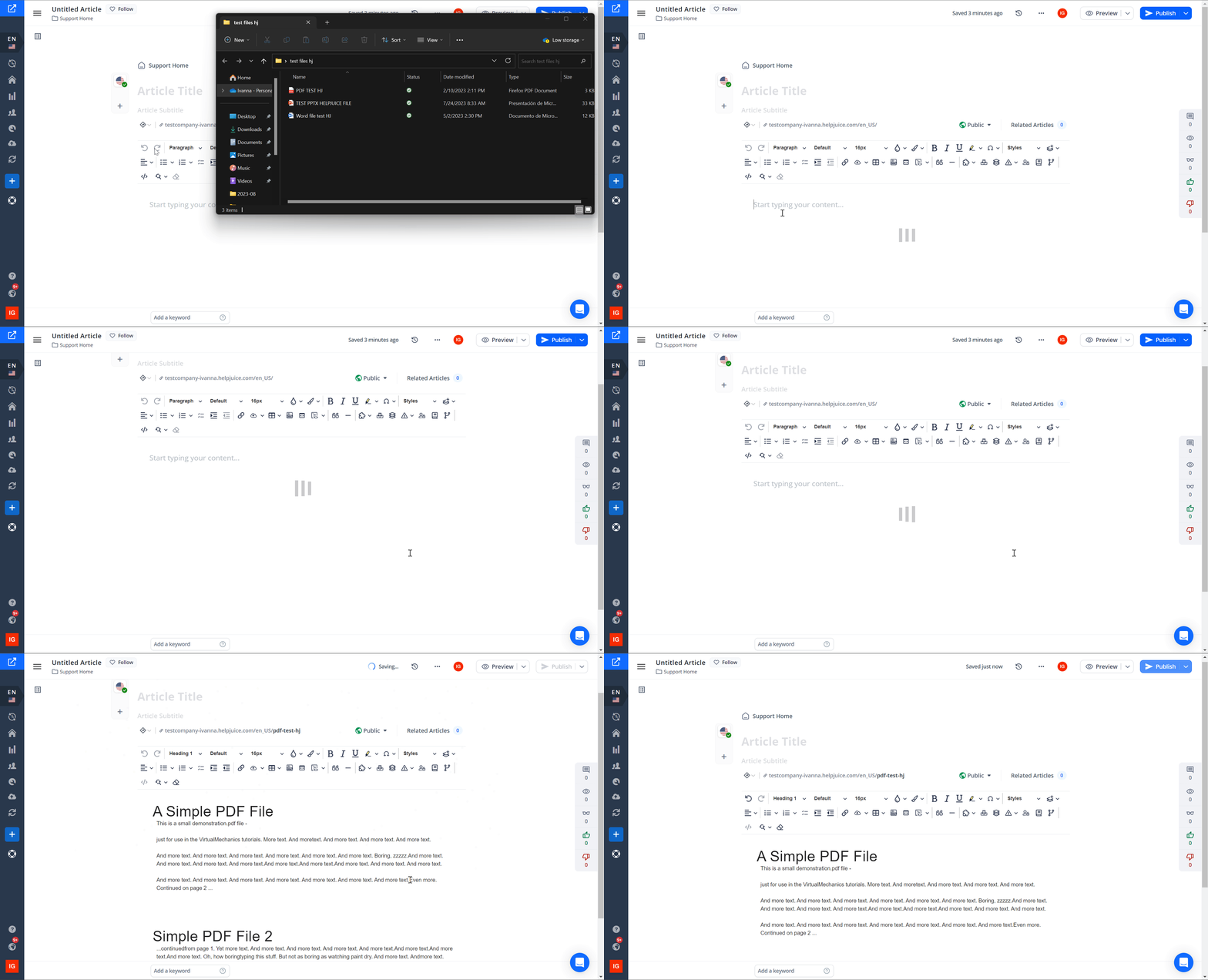
This only works if it's a brand new article - if you are editing an existing article it won't work, even if you remove all of its content first.


Best Practices

  • Prepare Your Documents: Ensure your documents are well-formatted before conversion to maintain readability.
  • Check for Compatibility: Verify that your file is in a supported format (PDF or DOCX) for successful conversion.
  • Review Converted Content: After conversion, review the article to ensure all content has been accurately imported and formatted.
  • Utilize the Article Editor: After conversion, use the article editor to make any necessary adjustments or enhancements to the content.


Was this article helpful?

Yes
No
Give feedback about this article

Related Articles

  • Dashboard - Managing Your Knowledge Base Content
One Knowledge Base To Replace Them All
24/5 support
Constant Product Updates & Improvements
100% money back guarantee
99.9% Uptime
Features
  • AI Knowledge Base AI-Enabled
  • Helpjuice Extension AI-Enabled
  • Powered Editor AI-Enabled
  • Advanced Analytics AI-Enabled
  • Customizable Themes AI-Enabled
  • Swifty · Helpbar & Chatbot AI-Enabled
  • Multi-Language Support
  • Step-by-Step Tutorial Creator
  • Seamless Integrations
  • User Access Control
  • See All Features >>
Product
  • Product Roadmap
  • Pricing
  • Book a Demo
  • Policies & Security
  • Our Customers
  • About Helpjuice
  • Contact Our Team
Resources
  • Our Knowledge Base
  • Webinars
  • Success Stories
  • API Documentation
  • Data Import Guide
  • Helpjuice Blog
Copyright © 2025, Helpjuice Inc.
Helpjuice, Inc. is a registered US Corporation.
EIN 46-2257741 | Download W9
Made in America High Performer Ease of Use Get Support
Get Started For Free
4.8 average review on
Life’s too short to use mediocre software.
+1 (833) 387 3877
Powered by Helpjuice Helpjuice Swifty AI External Link
Expand