Markdown and WYSIWYG Editor Types
Learn the difference between Markdown and WYSIWYG and choose the best format for your writing needs

Written by Amanda Stançani
Updated at September 23rd, 2025
Helpjuice gives you two ways to edit articles: Markdown and WYSIWYG editors. You can select which one to use, and the choice applies everyone in your Knowledge Base.
In this article, you’ll learn:
- What the Markdown editor is and when it’s useful
- What the WYSIWYG editor offers
- How to switch between them
- Things to consider before choosing an editor type
What is the Markdown Editor?
Markdown is a lightweight markup language. You type plain-text syntax like **bold**, ## Heading, - list item, etc., and the editor renders it into formatted content.
It’s great if you like control, clean markup, or want faster writing without lots of toolbar clicks. Because it's more "text first", it's often faster once you learn the syntax.
What is the WYSIWYG Editor?
WYSIWYG stands for What You See Is What You Get. You edit in a visual interface with toolbar buttons, and it shows formatting as you write (bold, headings, images, etc.).
It’s more user-friendly. You don’t need to memorize syntax and formatting is more discoverable via buttons/menu.
How to Switch the Editor Type
- Click your Avatar
- Go to Settings.
- Navigate to Knowledge Base Settings > Article Settings > Article Editor Type.
- Choose Markdown or WYSIWYG.
- Save your changes.
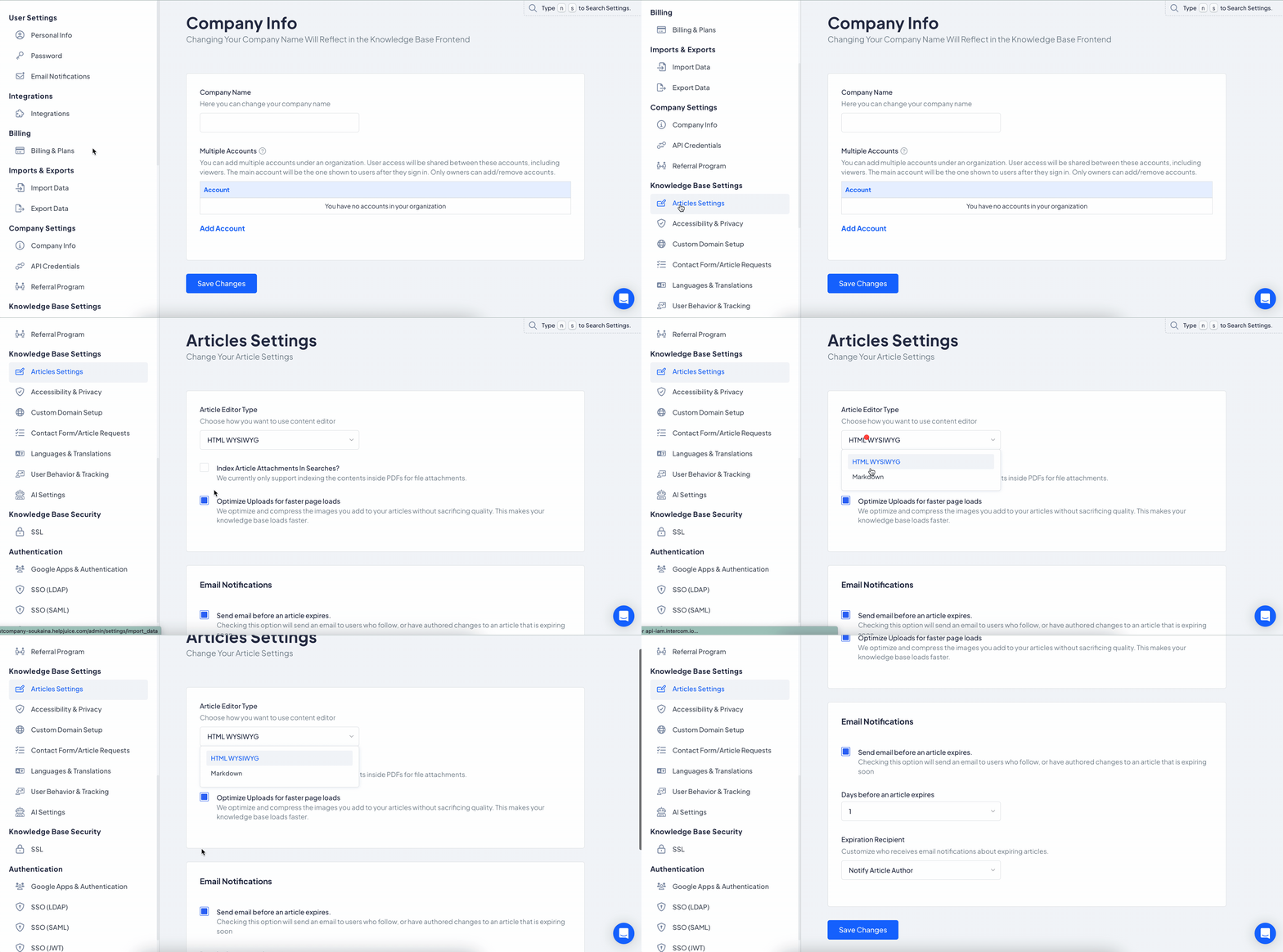
This change will affect all users in your Knowledge Base
What to Consider Before Choosing
| Factor | Markdown | WYSIWYG |
|---|---|---|
| Learning curve | Slightly steeper — you need to learn syntax. | Low — formatting via toolbar. |
| Speed for frequent writers | Potentially faster if you know syntax well. | Good for occasional editing, visual feedback. |
| Fine control | More control over markup, less hidden formatting. | Easier visual formatting, but some markup generated in background. |
| Complex content | Good if you work with tables, links, code blocks, etc., and want precise formatting. | Similar support, but sometimes easier via toolbar. |
| Risk of hidden formatting | Lower — content is more transparent. | Higher — sometimes formatting isn’t obvious until preview or published. |
Markdown Shortcut Examples
- Bold:
**text**→ text - Italic:
*text*→ text - Heading 1:
# Heading - Heading 2:
## Subheading - Lists:
- Unordered:
- Item - Ordered:
1. Item
- Unordered:
- Links:
[Helpjuice](https://helpjuice.com) - Images:
 - Code:
`inline code`or triple backticks for blocks
Best Practices
- Ensure people know what to expect if the editor changes (e.g. slight formatting differences).
- Test creating articles in both editors to see which workflow feels more natural.
- If you’re migrating content and chose Markdown, check how existing formatting behaves in either editor to avoid surprises.