Overview: Accessibility
Learn about the four access levels and how to select the right one for your content

Written by Amanda Stançani
Updated at September 30th, 2025
This article explains the different content accessibility levels in Helpjuice: Public, Internal, and Private. Understanding these options helps you control who can view your articles and categories.
In this article, you’ll learn:
- What each accessibility level means
- How to set accessibility levels for categories and articles
- Best practices for using these settings effectively
Accessibility Options
When creating or editing articles or categories, you can choose which users will be able to see the content. There are four basic options:
- Public
- Internal
- URL Only / Shared URL
- Private
Public
This is the default option for all Public knowledge bases. When a question or category is set to Public, anyone can access it. No login is required.
Internal
 Internal articles or categories are only available to logged-in users.
This option is great for sharing private content with your team. If you want to turn your entire as internal, please take a look here.
URL Only / Shared URL
URL Only Categories and Shareable URL Articles are Internal content that can be shared with external users via a secret token.
Private
The Private visibility also requires login. However, you can select specific users/groups who can access the content. This feature is good for sharing private articles with a specific group of users in your company, such as content for sales or design teams.
Be aware that, to avoid losing content, Super Administrators will always have access to private articles/categories, even if they are not in the allowed users list.
Accessibility Rules
- Public categories can contain subcategories and articles of any accessibility level (Public, Internal, or Private).
- Internal categories can contain only Internal or Private content. Public content is not allowed.
- Private categories can contain only Private content, and subcategories or articles must have the same or fewer users/groups than the parent category.
How to Modify Accessibility
Articles
Individual Articles
- Click on the Access Level section below the article subtitle.
- Choose the new accessibility option.

Multiple Articles
- Go to your Dashboard and select the desired articles.
- Click Actions → Change Access Level.
- Choose the new access level.
- Click Update to save changes.

Categories
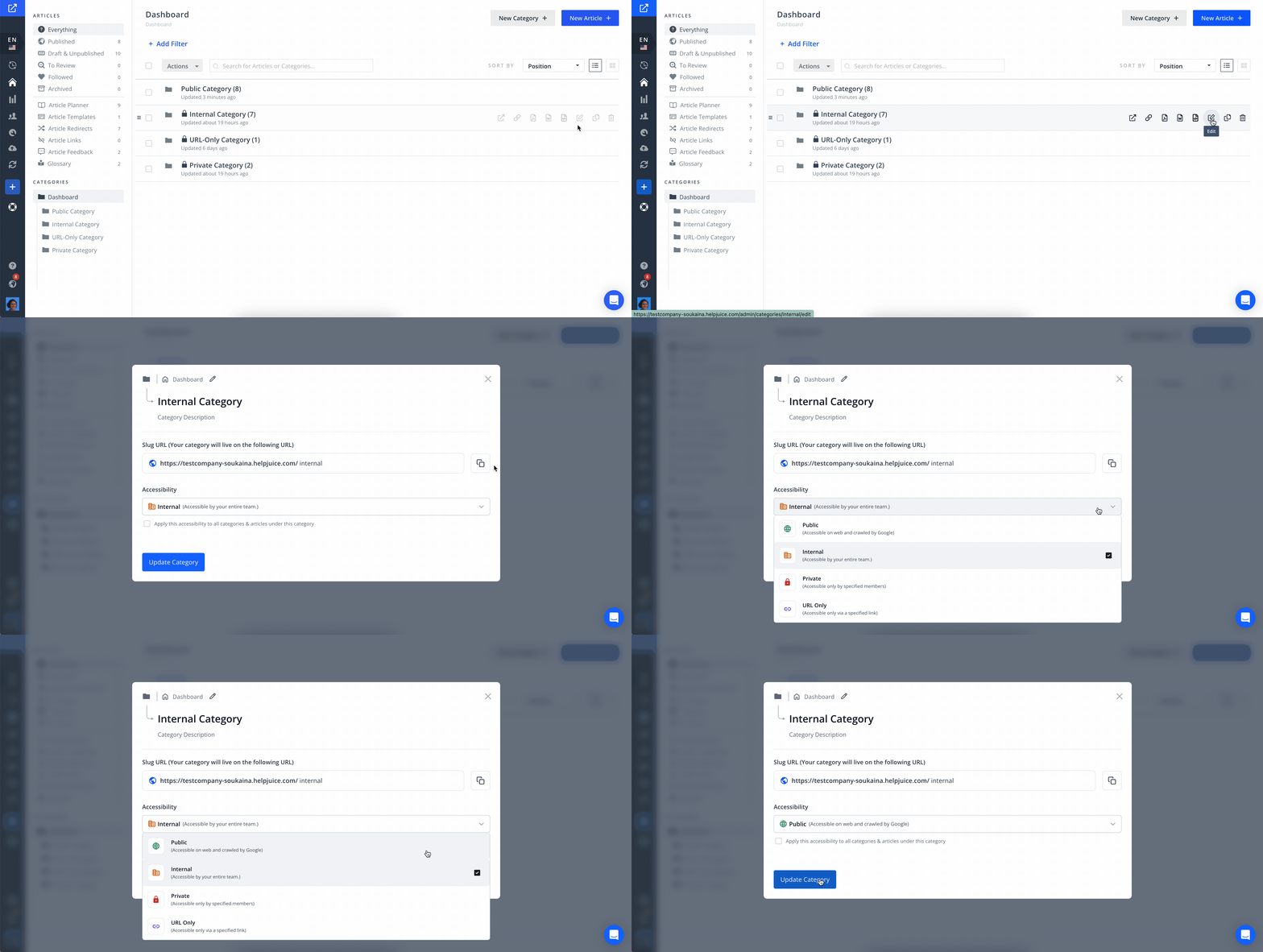
Individual Categories
- Open the Edit menu on the Dashboard.
- Choose the new access level in the Accessibility section.
Multiple Categories
- Go to your Dashboard and select the desired categories.
- Click Actions → Change Access Level.
- Choose the new access level.
- Click Update to save changes.

Best Practices
- Use Public for content intended for all users.
- Use Internal for internal knowledge sharing.
- Use URL Only to share selected content with external users securely.
- Use Private for sensitive content for specific users or groups.
- Regularly review accessibility settings to ensure proper access.