How To Remove Extra Formatting
Ensure your content appears clean and consistent by eliminating unwanted styles.

Written by Soukaina Zemmouri
Updated at September 23rd, 2025
When copying and pasting content from external sources into your Helpjuice articles, additional formatting styles may be included. These extra styles are not a Helpjuice issue - they are a common occurrence across industries whenever content is copied from word processors, websites, or other text editors. Different applications apply hidden styles, CSS, and HTML tags that can carry over into your article, potentially causing inconsistencies in appearance. This guide will show you how to remove unwanted formatting and maintain a polished look for your articles.
In this article, you’ll learn:
- Why it happens
- How to remove extra formatting using the Remove Format button
- How to edit HTML directly for advanced formatting issues
- Tips to prevent extra formatting in future articles
Why Extra Formatting Happens
Extra formatting occurs due to differences in how software handles text styling:
- Inline Styles: Word processors like Microsoft Word or Google Docs often add inline styles (e.g., font, color, spacing) directly into the HTML when text is copied. These styles override your article editor’s default styles.
-
Hidden HTML Tags: Some formatting comes from invisible HTML tags such as
<span>,<div>, or<font>that carry extra attributes. - CSS Conflicts: External content may have custom CSS classes or attributes that conflict with the article editor’s default styling.
- Copy-Paste from Webpages: When copying from websites, browsers often include a mix of HTML, inline CSS, and other metadata, which can produce unexpected visual results in the article editor.
This behavior is standard across all content management systems and text editors, not specific to Helpjuice.
How to Identify Extra Formatting
Users can often detect extra formatting when the content appears differently on the frontend than it does in the editor:
- Unexpected Fonts or Sizes: The text may look larger, smaller, or in a different font when viewed on the published article.
- Color Differences: Text may have colors that were not set intentionally in the editor.
- Spacing Issues: Extra spacing between lines or paragraphs can appear.
- Alignment or Layout Changes: Text or images may shift position unexpectedly.
- Strange Bullets or Lists: Lists may display differently than how they appear in the editor.
Always preview your article after pasting content to catch any inconsistencies before publishing.
Removing Extra Formatting
Remove Format Icon
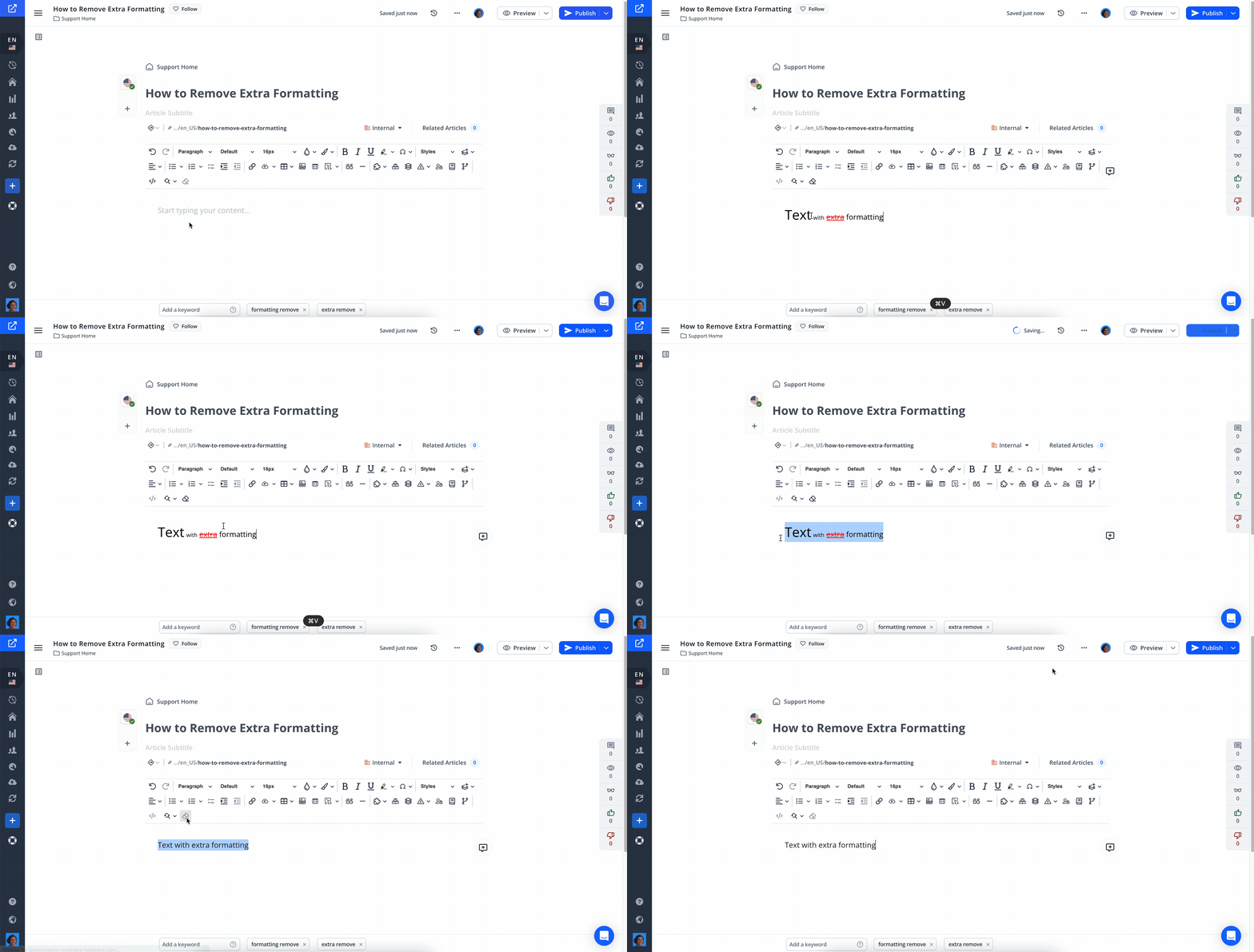
- Select the Text
- Highlight the portion of text that contains unwanted formatting.
- Click on Remove Format
- In the article editor's toolbar, click the Remove Format button.
- This action will strip the selected text of any additional styles, reverting it to the default formatting.
HTML Edits
If extra formatting persists after using the Remove Format button, you can edit the HTML directly:
- Access the HTML Source
- In the article editor, click on the Source button to switch to the HTML view.
- Modify the HTML
- Locate the affected text within the HTML code.
- Manually remove any inline styles or tags that are causing the unwanted formatting.

Preventing Extra Formatting in Future Articles
To avoid introducing unwanted styles when adding content:
- Use Plain Text Paste: Instead of using the standard paste function, use Ctrl + Shift + V (Windows) or Cmd + Shift + V (Mac) to paste content as plain text. This method strips away any additional formatting from the source.
- Write Directly in the Editor: Whenever possible, compose your content directly within the Helpjuice article editor to maintain consistent formatting.
Best Practices
- Review Imported Content: Always check pasted content to identify hidden formatting issues.
- Use Remove Format First: Apply the Remove Format button before making further edits to avoid conflicting styles.
- Test Across Browsers: Occasionally verify how your article looks in different browsers to ensure consistent presentation.