How to Create a Glossary
Easily define key terms and improve your Knowledge Base usability

Written by Amanda Stançani
Updated at September 26th, 2025
Creating a glossary in Helpjuice allows you to define important terms and provide users with instant, on-hover explanations. This helps improve clarity and ensures that users can understand the language used in your Knowledge Base without needing to leave the page.
In this article, you’ll learn:
- How to create and define terms in your glossary
- How to add glossary terms directly from the article editor
- How glossary terms are displayed in your Knowledge Base
- Best practices for managing and editing glossary entries
What is an Article Glossary?
The Article Glossary is a feature that lets you define terms and phrases that are essential for your readers to understand. Once defined, these terms automatically display a definition when hovered over, providing clarity without interrupting the reading experience.
How to Create and Define a Glossary Term
You can add glossary terms in two main ways: via the Glossary Section or directly in the Article Editor.
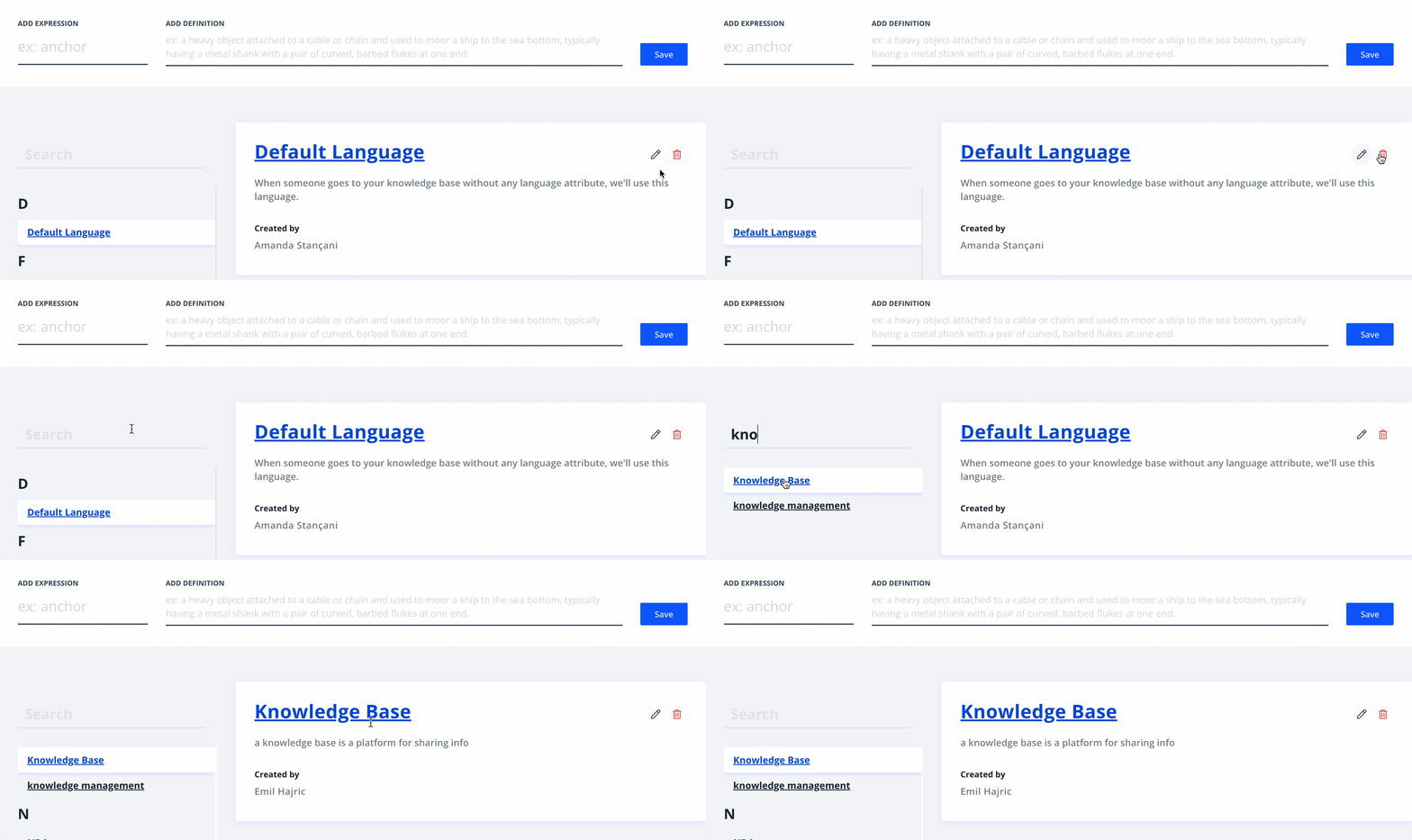
Creating a Glossary in the Glossary Section
- Access your Dashboard
- Click on the Glossary option
- Enter the Expression and its Definition
- Click Save
You will notice that each item added has an Edit icon (where you can edit Expressions and their Definitions) and a Delete icon. If you delete the Expression, you will lose definitions in all articles where this expression appears.
Adding Glossary Terms in the Article Editor
- Click New Article or edit an existing article
- Select the word you want to add to the Glossary
- Click Insert Glossary
- Add the meaning of the highlighted Expression
- Click Save to Glossary or Cancel

How Glossary Terms Are Displayed
In the Article Editor
In the Article Editor, glossary terms are highlighted with a blue underline.

In the Published Article
In the published article, users can hover over the underlined word to instantly see the definition. This feature helps keep the content clean while offering valuable information when needed.

The Glossary Article
All Knowledge Bases have a Glossary Articles that is automatically updated when Glossary Terms are created.
By default they are named <your_company_name> Glossary
You can adjust its title, subtitle, keywords and access level. Here's how it should look like in the editor:

If you'd like to see how it would look like on the frontend, see Helpjuice Glossary.
Important Considerations
- Any user can edit glossary terms, but the "Created By" field will always show the original creator. I
- Definition By and Votes can be removed via Code Customization. Super Administrators and Administrators have full access to the Customize section, but if you need any help with the code, do not hesitate to submit a Customization Request and our team will take care of everything!
- Glossary terms and definitions are shared across all languages in your Knowledge Base, ensuring consistent explanations regardless of the language used.
Best Practices
- Define common or industry-specific terms to ensure users understand your content.
- Keep glossary definitions clear and concise for quick comprehension.
- Regularly review and update your glossary to add new terms or revise existing ones.
- Avoid overloading your articles with too many glossary terms - focus on key phrases that require clarification.