How to Upload Your Custom SSL Certificate
Ensure Secure Connections with Your Own SSL Certificate

Written by Amanda Stançani
Updated at October 20th, 2025
Helpjuice allows you to upload your own SSL certificate for your custom domain, providing enhanced security and control over your knowledge base's encryption. This guide will walk you through the process of uploading your certificate and troubleshooting common issues.
In this article, you’ll learn:
- How to upload your custom SSL certificate
- How to troubleshoot common SSL certificate issues
- Best practices for managing your SSL certificates
Uploading Your Custom SSL Certificate
Click on your Profile Picture > Settings.
- Navigate to the SSL section.
- Enter your domain in the Your Domain field.
- Upload your Certificate Chain in
.pemformat. - Upload your Private Key in
.keyformat.
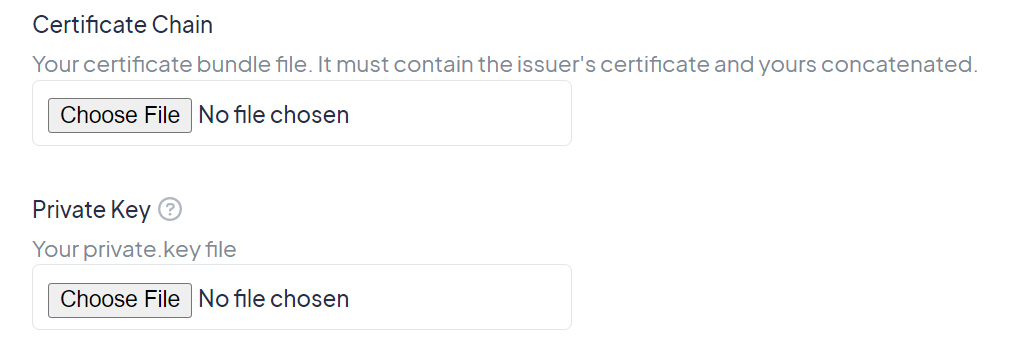
Since you're using a custom certificate and this is not managed by Helpjuice, you are responsible for resolving any issues directly with the certificate provider if needed.
Troubleshooting Common SSL Certificate Issues
If you encounter issues such as the “Private Key not Valid for this certificate” error message, consider the following troubleshooting steps:
1. Ensure the Correct Private Key File
When generating a Certificate Signing Request (CSR), a Private Key is created simultaneously. You must use the original private key associated with the CSR when uploading your certificate.
2. Verify the Certificate Concatenation
The certificate chain should be concatenated in the following order within the bundle file:
-----BEGIN CERTIFICATE-----
(Your Primary SSL certificate)
-----END CERTIFICATE-----
-----BEGIN CERTIFICATE-----
(Your Intermediate certificate)
-----END CERTIFICATE-----
-----BEGIN CERTIFICATE-----
(Your Root certificate)
-----END CERTIFICATE-----
Ensure that all certificates are placed in the correct order and properly formatted.If you are not sure which file corresponds to each type of certificate, please contact your Certificate Provider.
3. Remove Blank Lines
Ensure there are no extra blank lines between each certificate within the bundle file. Blank lines can cause invalid syntax, leading to the certificate failing validation.
4. Check DNS Settings
Verify that your DNS settings are properly configured. Incorrect DNS records can also result in certificate errors.
Best Practices
- Use the free SSL certificate provided by Helpjuice to simplify setup and maintenance.
- Keep custom SSL certificates up to date to ensure secure connections.