How To Insert Images And Videos
Enhance your articles with visual content to improve user engagement

Written by Amanda Stançani
Updated at October 3rd, 2025
Adding images and videos to your Helpjuice articles can significantly enhance user experience by providing visual context and clarity.
In this article, you’ll learn:
- How to insert images into your articles
- How to embed videos from various sources
- Supported video formats and their size limits
- Tips for optimizing media for better performance
Inserting Images in Articles
Via Files Manager
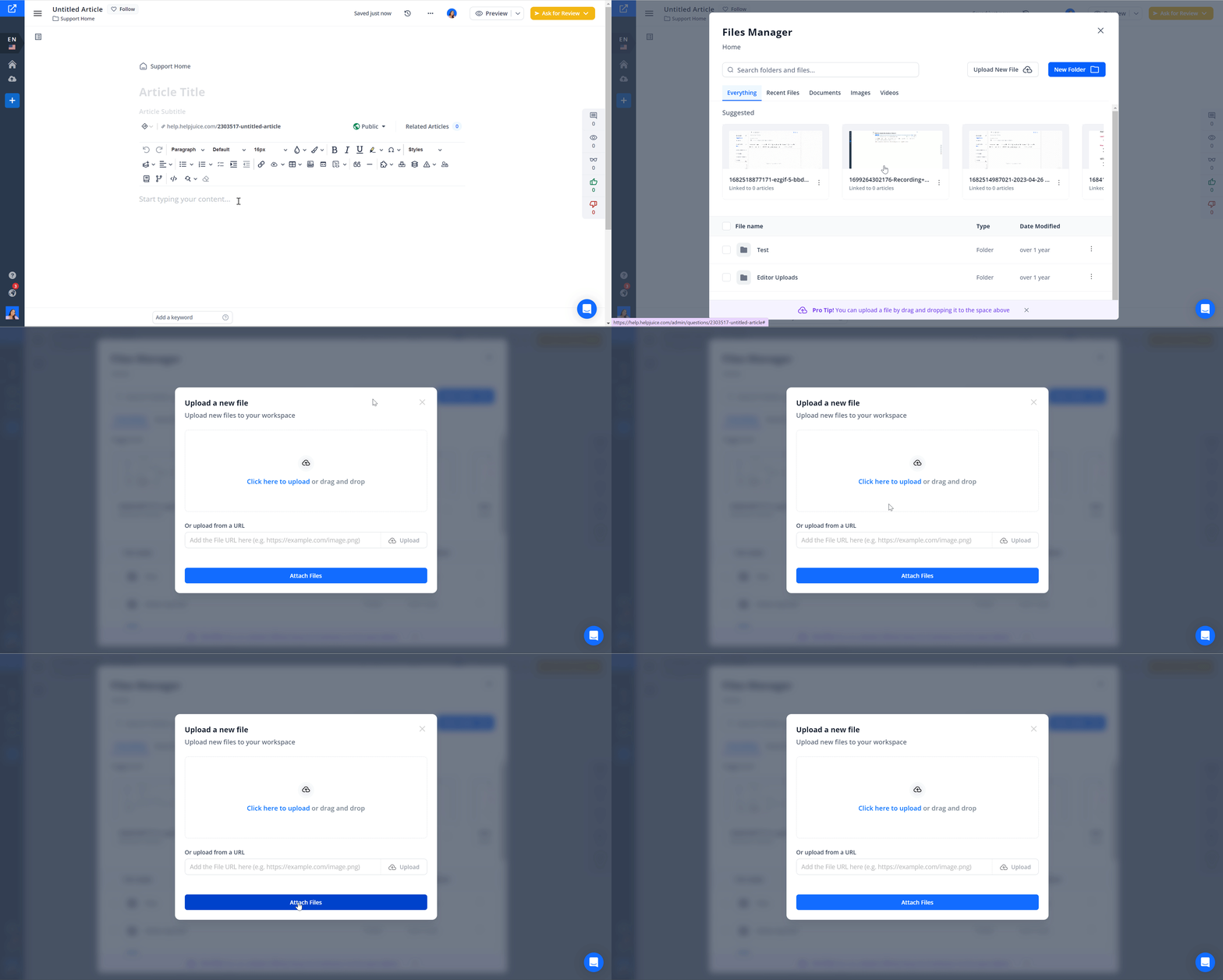
- Click New Article or edit an existing article
- Place the cursor where you want the image to be displayed
- Click Files Manager > Upload a New File
- Choose the image you want to upload, drag & drop it or add the file URL > click Attach Files.
Via Copy/Paste
- Click New Article or edit an existing article
- Copy the image from your source
- Place the cursor where you want the image to be displayed
- Paste the image
When you click on the image, a menu will pop up where you will be able to change the alignment, size, styles, and more!

Markdown Editor
To insert images in articles (Markdown):
- Upload the image in the Files Manager section
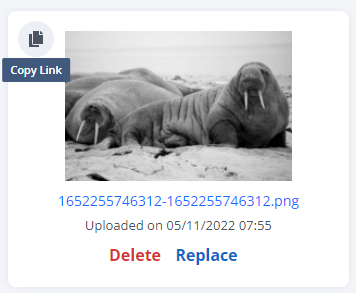
- Once uploaded, copy the image link by clicking the file icon in the image
- Go to article editor, and click the image button

- An empty image code block will appear. Paste the URL you've copied inside the parentheses. Example:

Inserting Videos in Articles
Via Files Manager
- Click New Article or edit an existing article
- Place the cursor where you want the image to be displayed
- Click Files Manager > Upload a New File
- Choose the video you want to upload, drag & drop it, or add the file URL > click Attach Files.
Embedding via URL
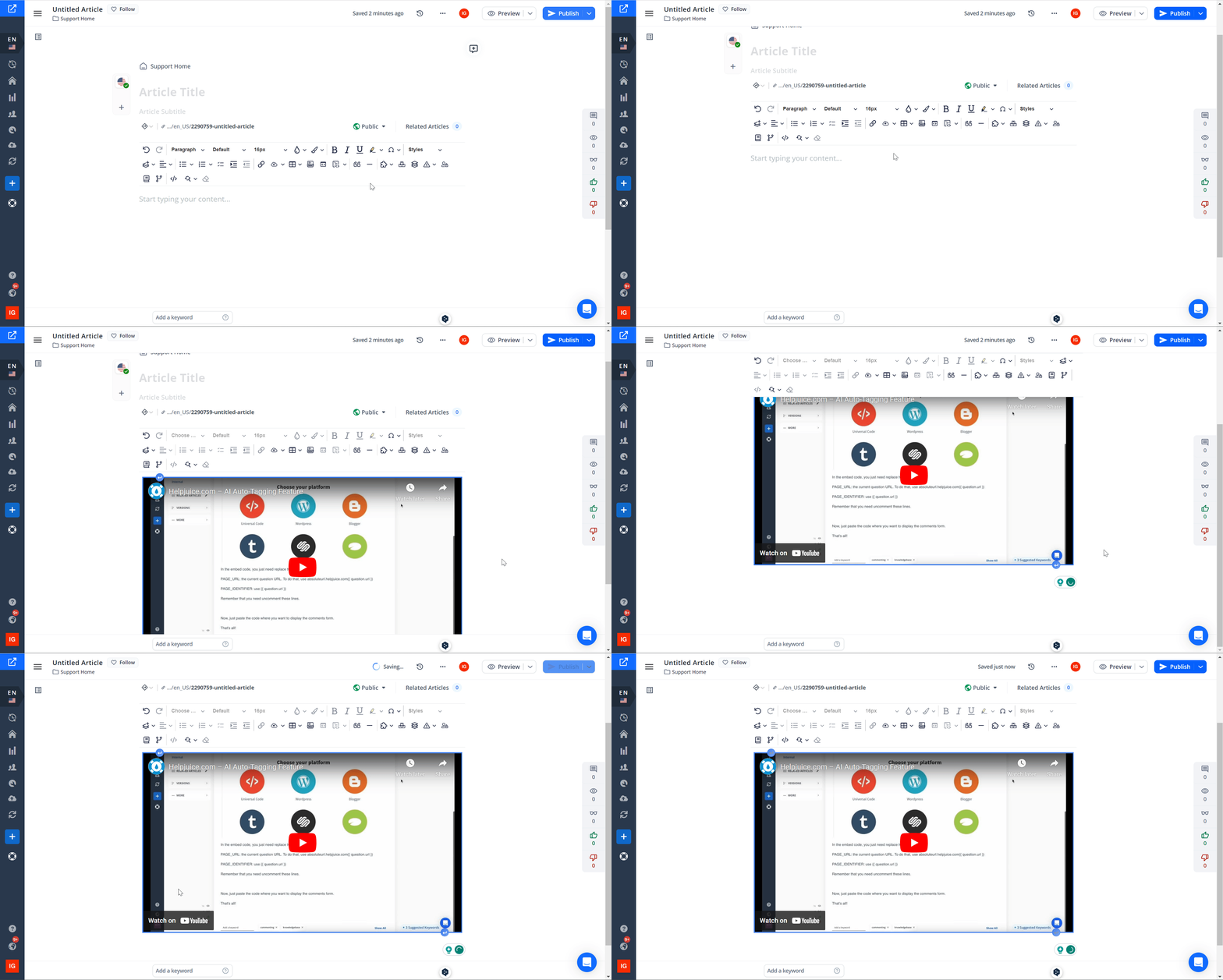
- Copy the video's URL from the source (e.g., YouTube, Vimeo).
- Paste the URL directly into the article editor where you want the video to appear.
- The video will automatically embed and be playable within your article.
Using Embed Code
- Obtain the embed code from the video source (e.g., YouTube, Vimeo).
- In the article editor, click Insert HTML.
- Paste the embed code into the HTML editor.
- Click the green checkmark to insert the video into your article.

Supported Video Formats
-
Files Manager Upload: webm, ogg, mp4
- Max file size: 5GB
-
Upload from Computer: webm, ogg, mp4
- Max file size: 100MB
-
By URL: YouTube, DailyMotion, Yahoo, Vidyard
- Max file size: 100MB
- Embed Code: No size limit for services providing embed codes
Avoid Using "&" in File Names When Uploading
When uploading files, using the & (ampersand) character in the file name can cause problems. This isn’t an issue with Helpjuice specifically - it's due to how browsers interpret URLs. The & symbol is used to separate parameters in URLs, so including it in a file name can lead to unexpected behavior during the upload process.
While it’s possible to encode the & as %26 in the URL to make it work, this approach isn’t ideal. The best practice is to avoid using special characters like & in file names altogether, to ensure smooth uploads and compatibility across platforms.
Best Practices
- Compress images and videos to reduce load times and improve performance.
- Use descriptive filenames for your media to enhance SEO.
- Provide alt text for images to improve accessibility and SEO.
- Ensure videos have captions to accommodate all users.