How To Link Articles
Create internal and external links, and embed article content effectively

Written by Amanda Stançani
Updated at September 23rd, 2025
Linking articles lets you guide users from one piece of content to another, help them find related resources, reference external pages, or even insert the body of one article into another. This improves navigation, aids context, and enhances the usefulness of your Knowledge Base.
In this article, you’ll learn:
- How to insert internal links to other articles
- How to insert external links (outside your Knowledge Base)
- How to insert one article’s content inside another
- How to edit, format, or unlink links
- Best practices for linking articles effectively
How to Insert Internal Links
Internal links point to another article within your Helpjuice Knowledge Base. They help users navigate related content without leaving the KB.
- Open a new article or edit an existing one.
- Type the @ symbol anywhere in the editor.
- Start typing the name of the article you want to link to and a list of matching articles will appear.
- Select the correct article from that list.
- After the link is created, you can:
- Click on the link → choose Edit Link to change the display text.
- Check “Open in new tab” if you want the link to open separately.
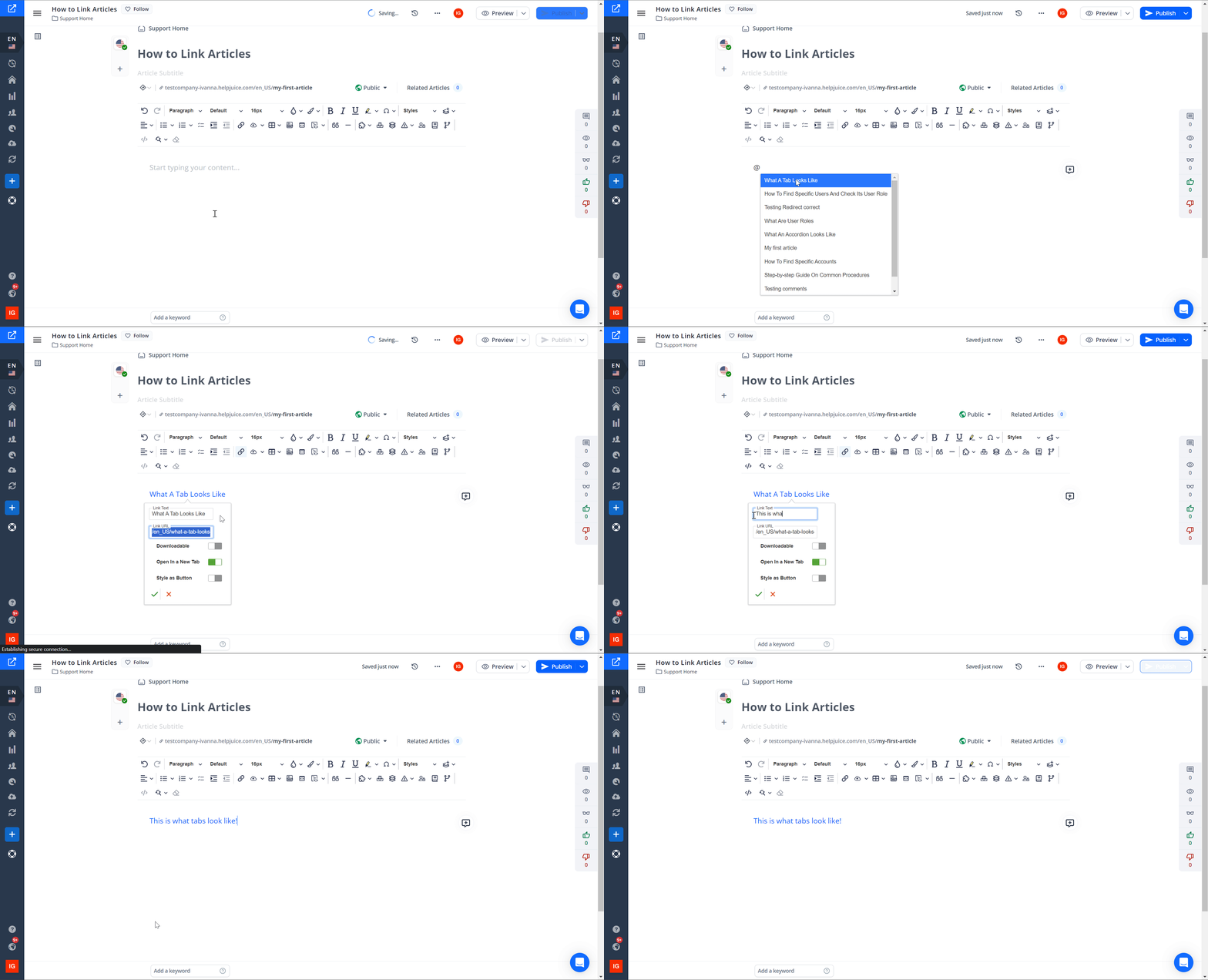
Always use the @ feature to link articles because the relative path will be used. This means that if you move the article to a different category, or if you update the knowledge base URL, those links will still point to the correct content.
How to Insert External Links
External links direct users to web pages outside your Helpjuice instance (e.g. another website, resource, documentation hosted elsewhere).
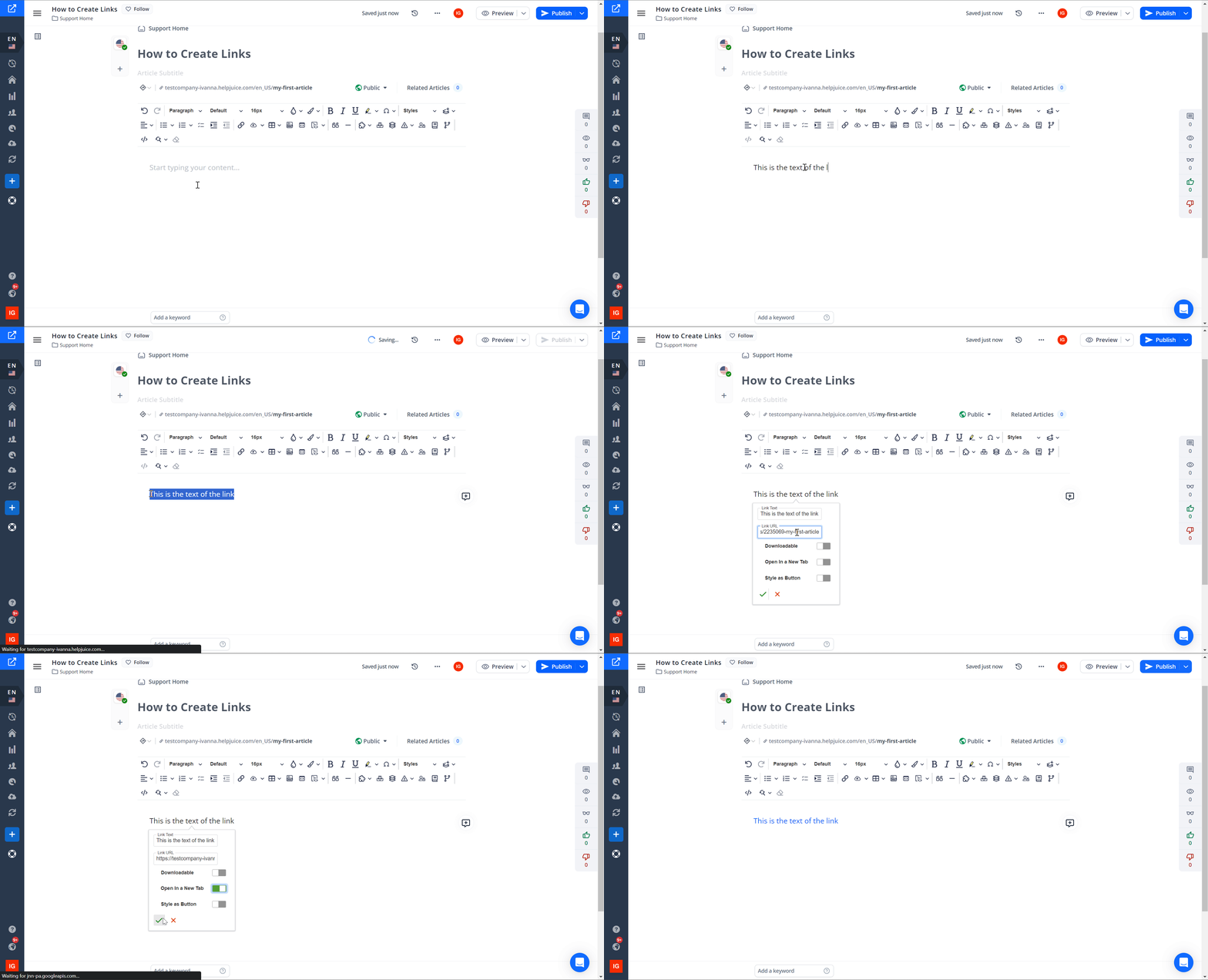
- Select the text (or image) you want to turn into a hyperlink.
- Click Insert Link in the editor toolbar.
- Paste the external URL.
- Optional settings after creating the link:
- Edit the display text.
- Set the link to open in a new tab.
- Remove the link via “Unlink” if needed.
How to Insert Article Content from One Article into Another
Beyond just a hyperlink, you can actually embed the body content of Article A into Article B, which is especially useful when you want to reuse content (like instructions, definitions, etc.) without duplicating and maintaining multiple versions.
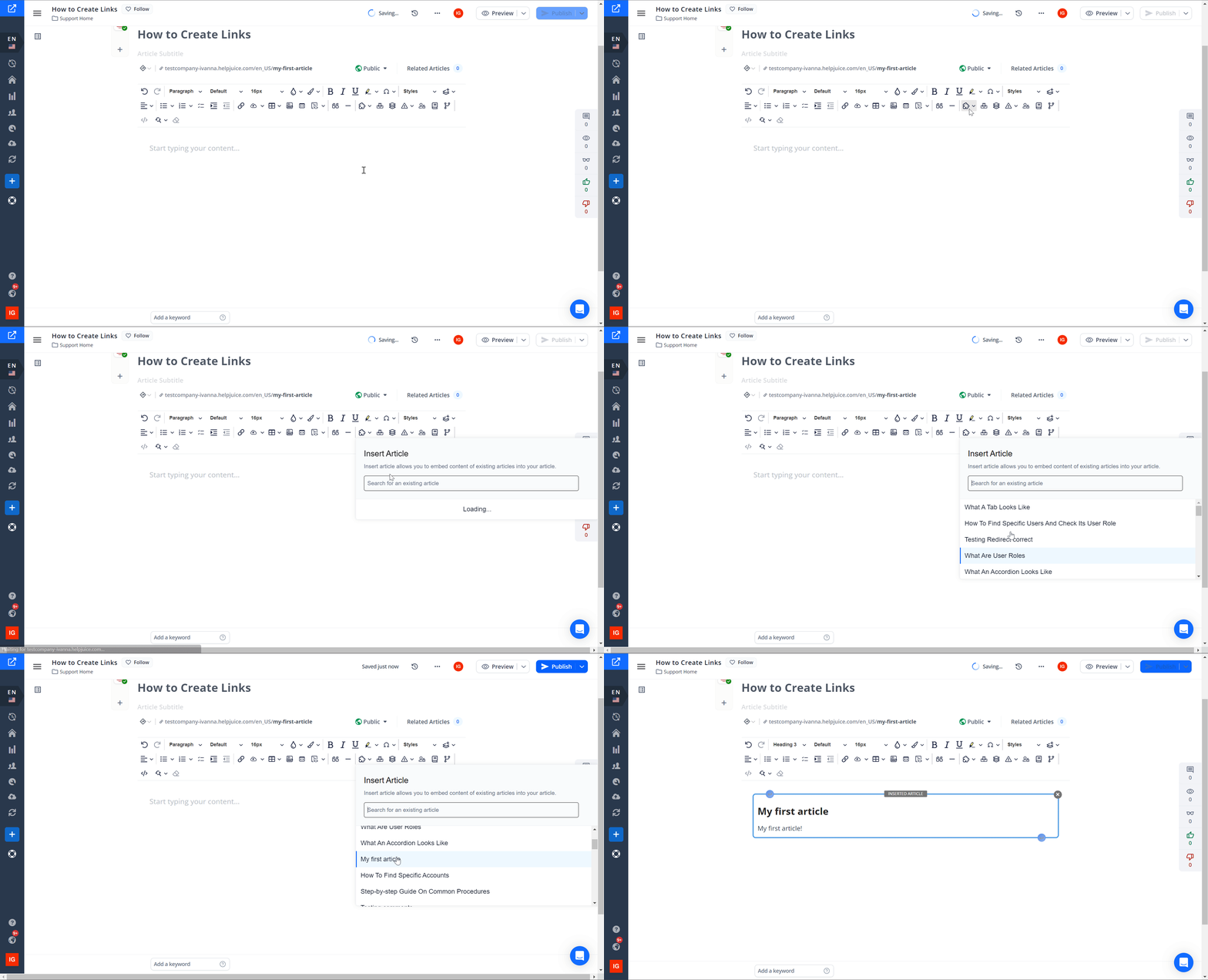
- Open or edit the target article (where you want to insert content).
- In the editor toolbar, click Insert Article.
- Choose the article whose content you want to insert.
- The body of that article will be inserted into the editor.
- You can then edit or format around it as needed.
Editing, Formatting, and Unlinking Links
Once a link or embedded content is created, you can adjust:
- Display Text: Modify the text that is shown to users.
- Open in New Tab: For links, choose whether they open in the same window or a new one.
- Unlink: Remove the hyperlink if it’s no longer needed.
- For embedded article content, you can treat the inserted content like part of the article – edit or remove it if needed.
Best Practices
- Use descriptive link text rather than just “click here” or “this article” so users know what they’re clicking into.
- Limit external links opening in new tabs to avoid losing context; internal links often work best within the same tab.
- Avoid overlinking: too many links can distract readers and make content harder to read.
- When embedding content, ensure that styling is consistent and formatting matches the rest of the article.
By using links smartly (both internal and external) and embedding content where it helps, you can make your Knowledge Base more connected, easier to navigate, and more useful for readers.