Contact Us

If you still have questions or prefer to get help directly from an agent, please submit a request.
We’ll get back to you as soon as possible.

Please fill out the contact form below and we will reply as soon as possible.

  • Contact Us
  • Home

How To Create User Groups

Written by Amanda Stançani

Updated at September 30th, 2025

Contact Us

If you still have questions or prefer to get help directly from an agent, please submit a request.
We’ll get back to you as soon as possible.

Please fill out the contact form below and we will reply as soon as possible.

  • Customization
    Customization Guides
  • Article Editor
  • Getting Started
    Managing Users Analytics Content Management Permissions & Accessibility Video Tutorials
  • Integrations
  • API & Webhooks
    API V2 API V3
  • Languages & Translations
  • Authentication
  • Swifty AI
  • Settings
    User Settings User Behavior Knowledge Base Settings Custom Domain
+ More

This article explains how to create and manage user groups in Helpjuice. User groups help organize users and control access to content, making it easier to manage permissions and collaboration. 

In this article, you’ll learn:

  • How to create new user groups
  • How to assign users to groups
  • How to manage content access with user groups

Creating New User Groups

To create a new user group:

  1. Navigate to Admin → Users → Groups.
  2. Click Add New Group.
  3. Enter a Group Name that clearly identifies the purpose of the group.
  4. (Optional) Select users to add to this group immediately. To understand more about the Smart Groups feature, check How To Automatically Assign Users To Groups.
  5. Click Save to create the group.

Assigning Users to Groups

To assign existing users to a group:

  1. Go to Admin → Users → Users.
  2. Select the user(s) you want to assign.
  3. Click Edit.
  4. In the Groups section, select the group(s) to assign the user(s).
  5. Click Save to apply changes.

Managing Content Access with User Groups

User groups can control access to specific categories or articles:

  1. Navigate to Categories or Articles.
  2. Select the category or article you want to restrict.
  3. In the Permissions section, select the group(s) that should have access.
  4. Click Save to enforce access restrictions.
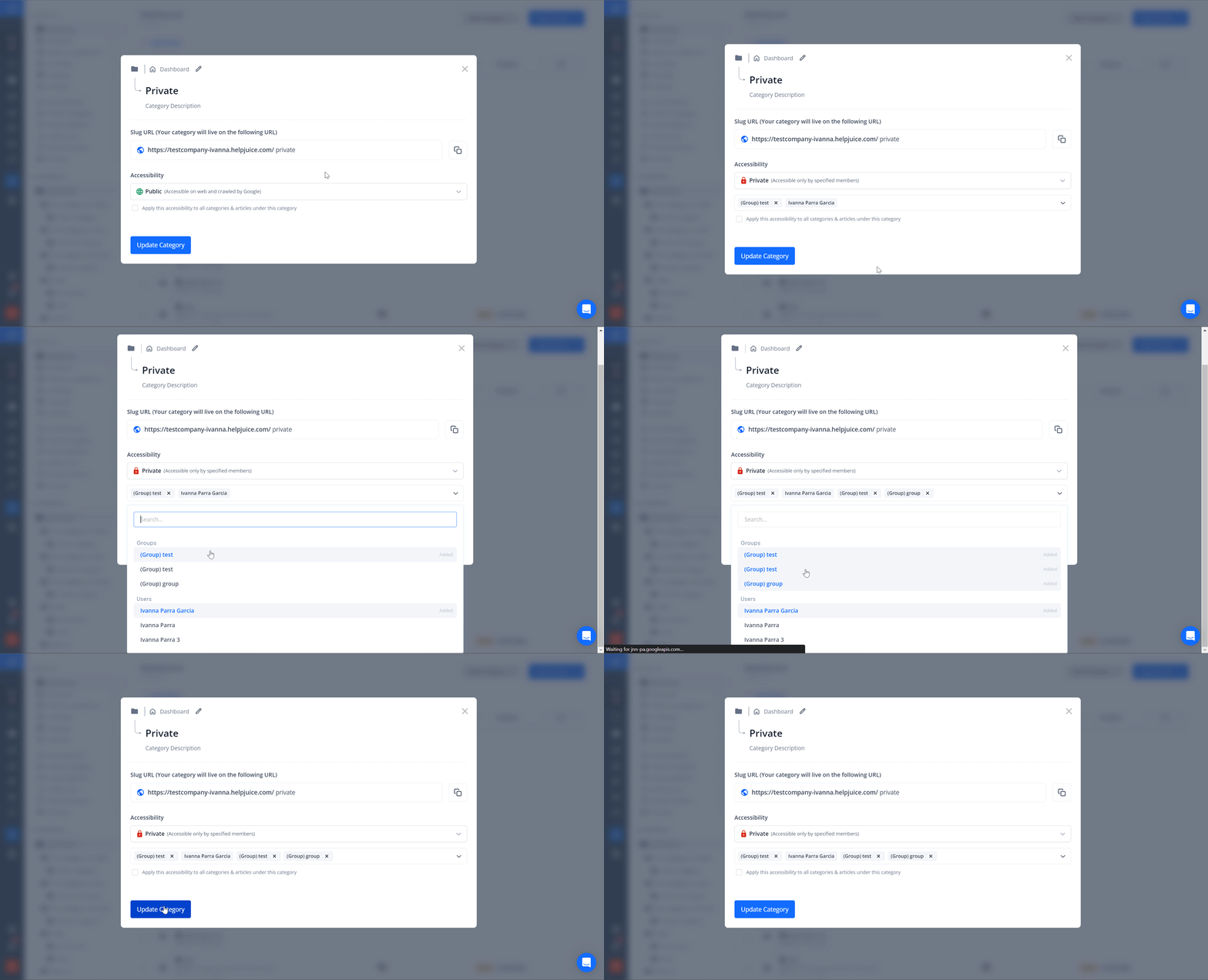
For more information on how to manage accessibility check Overview: Accessibility.

Best Practices

  • Use descriptive group names to easily identify their purpose.
  • Regularly review group membership to ensure access remains accurate.
  • Combine user groups with roles for more granular control over permissions.


Was this article helpful?

Yes
No
Give feedback about this article

Related Articles

  • How to Add, Edit, and Delete Users
  • How To Track User Activity
One Knowledge Base To Replace Them All
24/5 support
Constant Product Updates & Improvements
100% money back guarantee
99.9% Uptime
Features
  • AI Knowledge Base AI-Enabled
  • Helpjuice Extension AI-Enabled
  • Powered Editor AI-Enabled
  • Advanced Analytics AI-Enabled
  • Customizable Themes AI-Enabled
  • Swifty · Helpbar & Chatbot AI-Enabled
  • Multi-Language Support
  • Step-by-Step Tutorial Creator
  • Seamless Integrations
  • User Access Control
  • See All Features >>
Product
  • Product Roadmap
  • Pricing
  • Book a Demo
  • Policies & Security
  • Our Customers
  • About Helpjuice
  • Contact Our Team
Resources
  • Our Knowledge Base
  • Webinars
  • Success Stories
  • API Documentation
  • Data Import Guide
  • Helpjuice Blog
Copyright © 2025, Helpjuice Inc.
Helpjuice, Inc. is a registered US Corporation.
EIN 46-2257741 | Download W9
Made in America High Performer Ease of Use Get Support
Get Started For Free
4.8 average review on
Life’s too short to use mediocre software.
+1 (833) 387 3877
Powered by Helpjuice Helpjuice Swifty AI External Link
Expand